
You can find a ton of tutorials on making sure you have decent lighting and sound for your Zoom calls, and I think most people seem to do a pretty good job with these (although the fancy video backgrounds are distracting and if you have to use a virtual background because your set up is just not presentable, keep it simple), but I want to talk about textual mistakes people make in Zoom meetings.
But Zoom is a video platform– what text are you talking about?
- Your Name
- Your Contact Info Blurb for the Chat
Your Name
This is pretty simple. Make sure your Zoom name is your first and last name, plus your company.
This seems silly for internal meetings or other meetings where everyone knows exactly who you are, so perhaps you just renamed yourself to your first name (“Susan”).
Now you’re meeting with people who don’t know anything about you except that your name is Susan.
You’re counting on people taking great notes to know anything more (and remember it long enough to do something useful). Most people don’t take good notes. Even if you’re trying to take good notes, in big meetings, it’s hard to keep up.
Your Contact Info Blurb
In many Zoom meetings, participants will put their contact info in the chat, to make it easy for people to connect one-to-one.
Make sure you have your blurb somewhere easy to copy and paste into the chat.
Include the right info — I’ve seen people literally paste in their name (“Susan”) or a generic email address (“susan123@gmail.com”).
If you’re using Mimiran, you can copy the public Zoom Chat Personal Info Snippet and customize to your needs.
- Go to Admin > Content Snippets > Public Snippets, and scroll down or just search for “Zoom” until you see the “Zoom Chat Personal Info Snippet”. (See screenshot below.)
- Click the Copy to My Account button.
- Edit the info as appropriate for you.
- When you’re in a Zoom meeting or other place you need this, go to Admin > Content Snippets, find your snippet, click the Copy Content button, and paste into the Zoom chat or wherever else you need it.
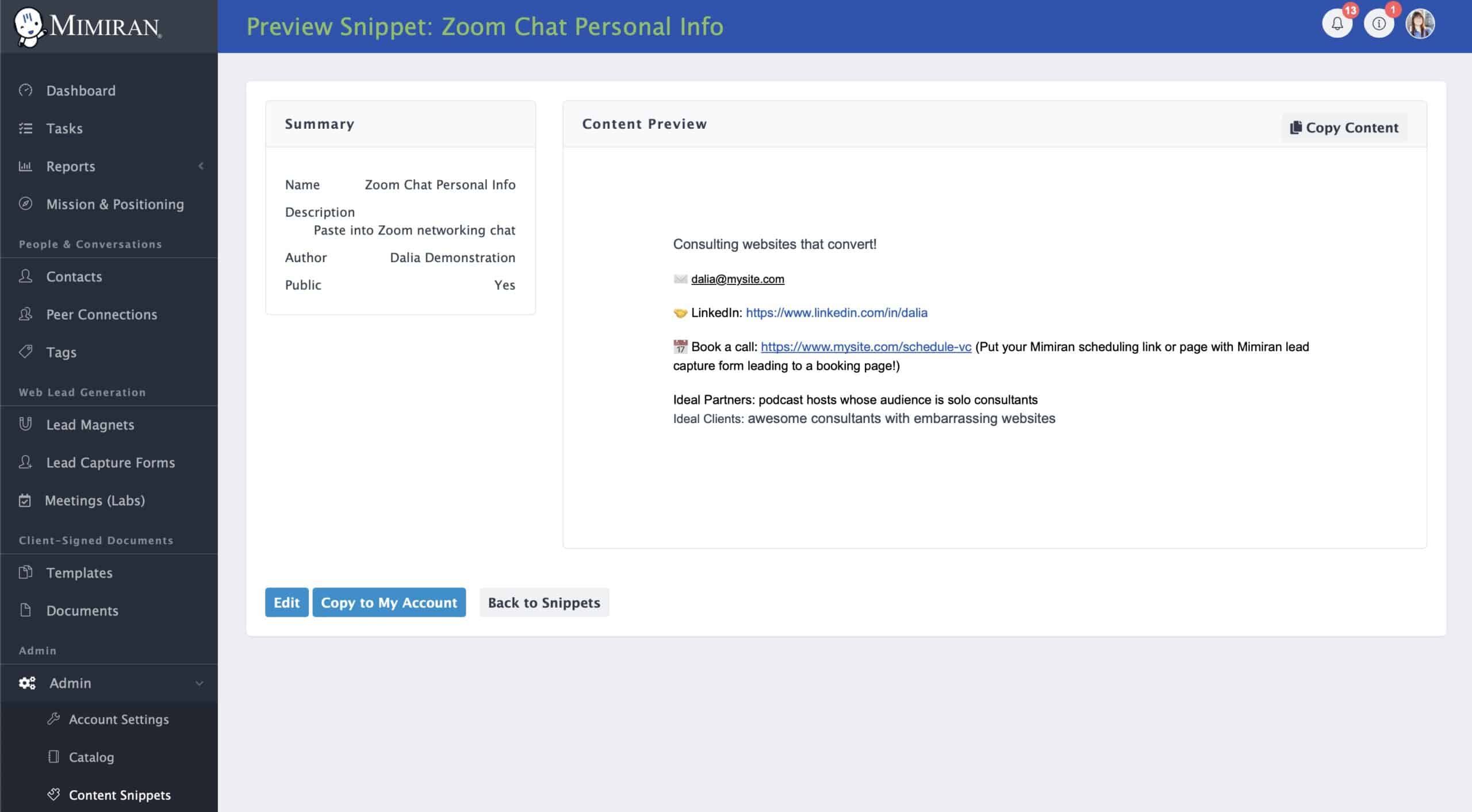
You can also copy it right here:
Consulting websites that convert!
✉️ dalia@mysite.com
🤝 LinkedIn: https://www.linkedin.com/in/dalia
📅 Book a call: https://www.mysite.com/schedule-vc (Put your Mimiran scheduling link or page with Mimiran lead capture form leading to a booking page!)
Ideal Partners: podcast hosts whose audience is solo consultants
Ideal Clients: awesome consultants with embarrassing websites
Notes
You don’t have to put everything in your snippet. The sample below doesn’t include a phone number, for example. It doesn’t include every social account. If you’re promoting an upcoming event, you may want to add a link and a signup link for that.
The emojis add a little visual interest, but more importantly, the URLs are explicit. If you have a URL behind other text like this LinkedIn profile, people can click it in the meeting, but when people save the chat, the link is gone. It doesn’t look as nice to spell out the URL, but you’ve got to do it.
Also note that the blurb is explicit about who you’re looking to meet. The more specific you are, the better.
Your 30-Second Pitch
Most Zoom networking sessions involve giving some kind of short overview of you and your business. You should have yours ready. Perhaps you join a new group with a slightly different format, but it shouldn’t be that hard to adjust. (If you’re using Mimiran, refer to the “Elevator Pitch” tab on the Mission & Positioning Screen.)
Don’t sound like you’re reading a script, but you should be clear and concise. After all, it’s your business. And you want other folks to know that you know your business, and you want them to be able to remember and repeat this message when they come across the right potential introductions.
Follow-up
Of course, none of this matters if you don’t follow up. I like to take the Zoom chat log and use the Paste Contact Info feature in Mimiran to turn it into contact info. I assign everyone imported the “Networking” tag, which automatically adds tasks like “Connect on LinkedIn”, “Set up 1-1”, and “Make an Introduction”. Whatever your process, have a process, and follow it, or you can spend your whole week “networking” without actually making any progress. (Also see how to Turn Zoom Networking into an Effective Referral Network.)