
Support
Templates and Content (9)
As many as you’d like.
Yes, it’s easy to edit template content. You can start with the sample template, the template(s) created during setup, save an existing proposal as a template, or just start from scratch.
Yes. You can enable PDF generation for a template, and override this setting for each proposal. If your customers expect PDFs, it’s best to enable PDF generation. You’ll get a notification when your contact creates a PDF version of the proposal.
Adding an Image

Images can add a lot to your content. Fortunately, inserting images is easy.
- Click the Image button.
- To upload a new image, go to the Upload tab, choose your image, and click the Upload to Server button.
Uploading an Image File

- After uploading, your image will appear on the Image Info tab. You can also click Browse Server to pick a thumbnail to insert an image you have uploaded previously.
- You can set basic image properties here (or stylesheet classes, inline styles, and more on the Advanced tab). You can also come back to this screen by right-clicking on the image once it’s inserted.
- Click OK.
Editing the Image

- To get back to the Image Info screen, just right click on the image and select Image Properties.
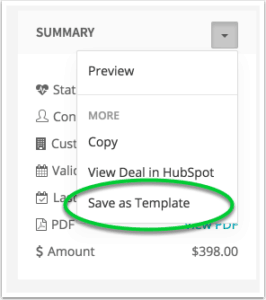
You can save an existing proposal or lead magnet as a template. This is helpful if you make substantial modifications to a template in a particular case, and then you think this would be useful as a template in it’s own right.
Go to the summary page for that content, click on the caret and the click Save as Template.
If you want to make a copy of an existing template, you can do that from the Summary page, as well, by clicking on the Copy Template button on the bottom toolbar.
Products, Services and Quotes (4)
Yes. You can then select from this catalog to create quotes, so you have a standardized way of managing offerings and prices.
A proposal can have one or more quotes. (Actually, you can have a proposal without any quotes, but then you don’t get the advantage of Mimiran computing the appropriate pricing.)
You can even think of a proposal as being one or more quotes, with some additional content.
Yes. And this is often a great way to boost win rates and average selling price.
If you do this, the customer must select at least one option to accept the proposal.
You can add more than one quote to a proposal, and this is a great way to offer a cross-sell or up-sell, or a good/better/best set of options.
When you have more than one quote on a proposal, the quotes will have checkboxes next to them to allow you to present which options you’ve preselected to the prospect, and to allow the prospect to make the final selections.
How does this compare to user-editable quantities?
Quotes allow you to package up a whole solution. With multiple quotes, you are giving people the ability to pick one or more solutions.
User-editable quantities on line items just impact that one part of the solution.
You can, of course, combine the two.
Lead Capture (4)
Yes, that’s the whole idea! A lot of companies that sell services and solutions that you can’t simply buy online are not very good at giving visitors a compelling call to action (CTA). Contact forms are off-putting. These Lead Capture Buttons are a friendlier, more inviting way to establish contact with your visitors. (Requires Growth Plan or higher.)
When you create the button in Mimiran, you’ll get a single line of javascript to insert into your website. You can see this javascript by clicking on the Widget record in Mimiran, right under “Embedding in Your Website”. If you need help, Mimiran can do this for you.
Yes. You can style the buttons and the pop-up to match your brand. You also control the text on the button and the pop-up, and you can specify which fields are required, which are optional, and which are hidden. For example, in some cases you may insist on gathering a phone number, while in other cases, you may not want to discourage people from completing the form.
The old Lead Capture Widgets have a drawback– synchronous Javascript that can slow down the page loading time for your visitors (and for Google).
Fortunately, those Widgets now offer asynchronous Javascript, do your page loads without having to wait on the Mimiran script to run. The script doesn’t take long, but every split-second counts with page loading, especially on mobile connections.
Here’s how you can quickly replace the older style with new, asynchronous style.
Go to your original Widget. Click the Copy button. (You can also click the Copy button under the Actions section of the Widgets List.)
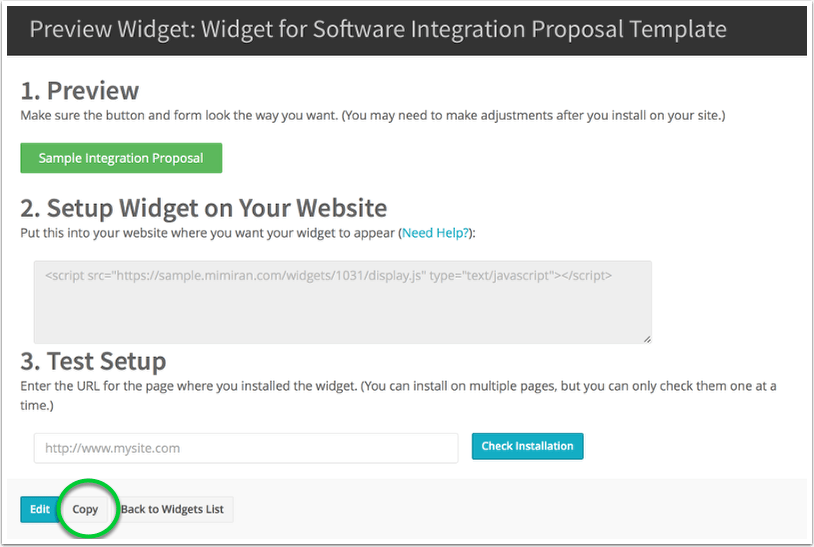
This will automatically create a copy of your Widget, with everything the same as it was, but with asynchronous code.
Copy and paste the new code in place of the old on your website.
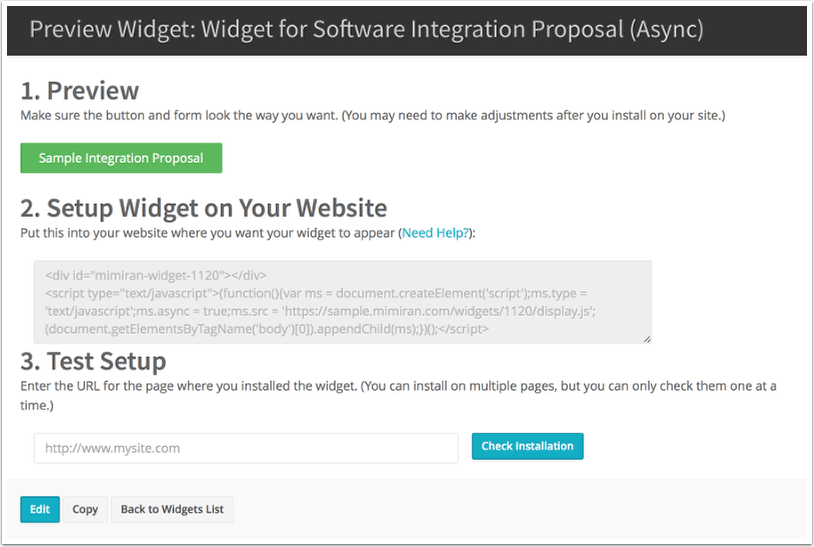
Now, you’re all set. (You may notice that your page loads and then the button appears.)
Notifications (2)
Mimiran doesn’t have native text messaging capabilities, but you can use this IFTTT recipe to automatically forward Mimiran notifications as text messages.
Mimiran notifies you when:
- a contact reads a proposal or other content
- a contact adds a comment
- a contact creates a PDF version of content (if permitted)
- a contact accepts a proposal
- a contact requests content from a Lead Capture Widget
- you have a proposal submitted to you for a approval
- a proposal you have submitted for approval gets that approval (or not)
These notifications will include a link to the content.
Integrations (2)
Under the Admin & More menu, select Import Data.
Click the Set Up Salesforce.com Integration button.
Enter your Salesforce.com Consumer Key and Consumer Secret. If you haven’t already set up your Connected App in Salesforce, follow these steps, which will lead to you getting your key and secret.
- Login to Salesforce, and click your username in the upper right. Click on the Setup menu item.
- Click Create > Apps.
- Under Connected Apps at the bottom of the main panel, click New.
-
Enter settings for the App Name and API Name. You do not need to enter any of the URL fields.
-
Select the checkbox to Enable OAuth Settings.
-
Enter the callback url, which is of the form https://mydomain.mimiran.com/auth/salesforce/callback. NOTE: replace “mydomain” in the URL with your Mimiran subdomain. For example, if your Mimiran account is at “https://awesomeco.mimiran.com”, your callback URL would be “https://awesomeco.mimiran.com/auth/salesforce/callback”. If you do not enter your subdomain correctly, you will not be able to connect.
-
Select the “Access and manage your data (api)” and “Perform request on your behalf at any time (refresh_token)” OAuth Scopes and click the Add button to move that scope to the Selected OAuth Scopes list.
-
Click Save.
-
- You can now copy and paste your Consumer Key and Consumer Secret into Mimiran and connect.
Sometimes you want to export contact information from Mimiran.
- To import into an email marketing system or other CRM.
- To send holiday cards (nice suggestion from a customer).
- To do analysis or cross-referencing in Excel.
- Other things?
You may have that information in a CRM system, your phone, or, perhaps a variety of places.
To export this data from Mimiran, go to Contacts > Contact List > Export as CSV. This will also export the related customer information, like shipping and billing addresses if you have that in Mimiran.
Setup (2)
To configure your default email template for your account, go to Account > Account Settings in the Admin section of the navbar. Then click on the Mail Template tab and enter your default content. You can use an email signature and whatever default content you want to use. (Note that you can override this template for automated Lead Magnet responses and when sending a proposal through Mimiran.)
Pro Tip: If you want an easy way to insert a link to the content with the name of the content, you can use the “Link to View with Name” merge field.
If you want to let colleagues view (but not edit) other users’ proposals, all you have to do is add them as a user. By default, regular, non-administrator users do not have edit permissions on proposals they don’t own.
If you want to let users edit each other’s proposals, go to Account > Account Settings > Details, and select “
Note that admin users can edit any proposal in the system.
User Permissions (2)
If you want to let colleagues view (but not edit) other users’ proposals, all you have to do is add them as a user. By default, regular, non-administrator users do not have edit permissions on proposals they don’t own.
If you want to let users edit each other’s proposals, go to Account > Account Settings > Details, and select “
Note that admin users can edit any proposal in the system.
Your content’s status field shows where it is in the sales process.
- Draft: The default state. This content cannot be viewed by prospects, even if they have a link. This lets you work on content before sharing, let’s your enforce approval of content before your team can share it (if desired), and lets you “unshare” proposals, which moves them back to the Draft state, if you need to make major changes.
- Awaiting Approval: If you have an approval process enabled (under Admin > Account > Account Settings > Approval), proposals must get the appropriate approval before your team can share them with prospects. When the user has finished editing the content, they can submit the proposal for approval. They proposal is locked until approved. Note that this only applies if you’ve enabled the approval process.
- Approved: If the approver(s) decide to approve the proposal, it goes into the “Approved” state, where the user can share it. If approval is denied, the proposal goes back to the “Draft” state. Note that this only applies if you’ve enabled the approval process.
- Sent: Means you have shared the content with a prospect, but they have not viewed it yet. It’s a good idea to check your Sent Lead Magnets and Proposals to remind prospects to read the content.
- Collaboration: The prospect has seen the content.
- Accepted: The prospect has accepted the proposal or lead magnet. Note that depending on how you define the Accept Button Text and the Accept URL for the Lead Magnet, “accept” can have different meanings. For example, you could have the button say “Schedule Consultation”, and the accept URL be a page where prospects can book a time in your calendar.
- Rejected: You have marked the lead magnet or proposal as rejected. For a lead magnet, this just means that the prospects is not qualified. For a proposal, it means that the deal is lost.
Tips and Tricks (1)
Sometimes you want to export contact information from Mimiran.
- To import into an email marketing system or other CRM.
- To send holiday cards (nice suggestion from a customer).
- To do analysis or cross-referencing in Excel.
- Other things?
You may have that information in a CRM system, your phone, or, perhaps a variety of places.
To export this data from Mimiran, go to Contacts > Contact List > Export as CSV. This will also export the related customer information, like shipping and billing addresses if you have that in Mimiran.